Every React developer eventually runs into the same requirement.
A client says:
“We need to show PDFs on the website.”
At first, it sounds trivial.
You think:
“Easy. I’ll just throw an iframe in there.”
Then reality hits.
The PDF looks terrible on mobile.
The scrolling feels awkward.
Performance tanks on large files.
The UI suddenly feels outdated.
Users download the file instead of engaging with it.
And your beautifully designed React application now feels like a random document portal from 2012.
I’ve dealt with this problem while building dashboards, SaaS products, ERP systems, educational platforms, digital catalogs, and client-facing business applications. Over time, I realized embedding PDFs properly is less about “making the file visible” and more about maintaining the quality of the user experience.
A modern React application should feel smooth, interactive, responsive, and visually polished — even when displaying documents.
So in this guide, I’ll walk through the actual approaches professional React developers use to embed PDFs, the pros and cons of each method, performance considerations, mobile issues, SEO implications, and why interactive flipbooks are becoming increasingly popular for production applications.

Why Embedding PDFs Is Harder Than It Looks
Developers often underestimate how awkward PDFs are inside modern web apps.
The PDF format was originally designed for document consistency, not interactive web experiences. Browsers only support PDFs because they added viewers later. That means when you embed PDFs into a React app, you’re essentially forcing an old document format into a modern interactive environment.
This creates several problems immediately:
- inconsistent rendering across browsers
- poor mobile usability
- slow loading for large documents
- clunky zoom interactions
- ugly default controls
- limited customization
- accessibility issues
- poor engagement tracking
- broken visual consistency with your app design
And unfortunately, users absolutely notice these issues.
A clean React UI instantly feels less premium the moment a badly embedded PDF appears.
That’s why choosing the right embedding strategy matters far more than most developers realize.
Method 1: Using an iframe (The Quickest Solution)
The simplest and most common solution is using an iframe.
Most developers start here because it takes less than 2 minutes.
Example:
export default function PdfViewer() { return ( <div className="w-full h-screen"> <iframe src="/sample.pdf" width="100%" height="100%" title="PDF Viewer" /> </div> );}
And technically?
Yes.
This works.
The browser loads the PDF viewer internally, and users can scroll through the document directly inside your React application.
For internal admin dashboards or quick MVPs, this approach is usually acceptable.
But the problems begin once your app becomes customer-facing.
The Real Problems With iframe PDF Embeds
1. Browser Rendering Is Inconsistent
Chrome, Safari, Firefox, and Edge all render PDFs differently.
Some browsers include built-in controls.
Some hide them.
Some handle zoom differently.
Some browsers on mobile barely support embedded PDFs at all.
This creates inconsistent UX across devices.
As React developers, we usually want predictable rendering behavior. iframes remove that control completely.
2. Mobile Experience Often Feels Terrible
This is the biggest issue.
Desktop PDFs might feel “okay,” but mobile users suffer immediately.
Common problems include:
- awkward pinch zooming
- horizontal scrolling
- tiny unreadable text
- accidental page movement
- laggy rendering
- broken fullscreen behavior
Users on phones rarely enjoy interacting with embedded PDFs through standard browser viewers.
And since mobile traffic dominates most modern websites, this becomes a major usability problem.
3. You Lose UI Consistency
Your React app might have:
- beautiful typography
- smooth animations
- modern cards
- elegant transitions
- polished layouts
Then suddenly an old-school browser PDF viewer appears in the middle of the screen.
It feels disconnected from the rest of the application.
Even if users don’t consciously think about it, the perceived quality of the app drops instantly.
4. Large PDFs Can Destroy Performance
Large documents are painful.
Especially:
- catalogs
- reports
- technical documentation
- magazines
- educational material
- product manuals
A huge PDF loaded inside an iframe can:
- freeze low-end devices
- increase memory usage
- create scroll lag
- slow down rendering
- hurt Core Web Vitals
This becomes especially noticeable on older mobile devices.
Method 2: Using react-pdf for Better Control
If you want more flexibility, the react-pdf library is one of the most popular approaches in the React ecosystem.
Install it:
npm install react-pdf
Basic usage:
import { Document, Page } from "react-pdf";export default function App() { return ( <Document file="/sample.pdf"> <Page pageNumber={1} /> </Document> );}
Unlike iframes, this approach gives you actual React-level control over rendering.
And honestly, this is where things start becoming much more professional.
Why Developers Prefer react-pdf
1. Full UI Customization
This is the biggest advantage.
You can build:
- custom navigation
- zoom controls
- pagination systems
- dark mode support
- annotations
- search functionality
- branded interfaces
Instead of relying on browser UI, you fully control the document experience.
For SaaS applications, this matters a lot.
2. Better Integration With React Architecture
Since everything becomes component-based, it fits naturally into React applications.
You can:
- lazy load pages
- control state cleanly
- integrate Redux/Zustand
- add animations
- sync page state with routes
- optimize rendering
The document viewer stops feeling “external” and starts feeling like part of the actual app.
3. Improved User Experience
You can create significantly smoother interactions than native browser PDF viewers.
For example:
- animated page transitions
- cleaner controls
- responsive layouts
- optimized mobile scaling
- custom keyboard shortcuts
- document progress indicators
This creates a far more premium experience.
But react-pdf Still Has Limitations
Despite being powerful, it’s not perfect.
And this is where many developers underestimate the implementation complexity.
Rendering Large PDFs Can Become Heavy
Rendering PDFs in JavaScript is expensive.
Very large documents may:
- increase CPU usage
- consume memory heavily
- slow initial rendering
- cause mobile lag
- reduce scroll smoothness
If you’re dealing with hundreds of pages, optimization becomes essential.
You End Up Rebuilding Features
This is the hidden cost.
Once clients start asking for:
- thumbnails
- fullscreen mode
- analytics
- branded viewers
- smooth transitions
- better navigation
- interactive experiences
you slowly realize you’re building an entire document platform yourself.
That can become a surprisingly large engineering effort.
The Bigger Problem: PDFs Are Usually Boring
This is something most technical articles ignore.
Even if the PDF rendering works perfectly…
traditional PDFs still feel static.
Especially for:
- digital brochures
- catalogs
- magazines
- presentations
- marketing documents
- portfolios
- annual reports
- ebooks
Users don’t interact with them naturally.
They scroll mechanically, skim quickly, and leave.
For customer-facing experiences, static PDFs often fail to create engagement.
That’s why many businesses are shifting toward interactive flipbook experiences instead.
Why I Started Using Flipbook-Based PDF Viewers
After building several client projects, I noticed something interesting.
Clients cared less about the technical implementation and more about presentation quality.
A visually engaging document immediately made businesses feel more premium.
That’s where platforms like ZipFlipbook became extremely useful.
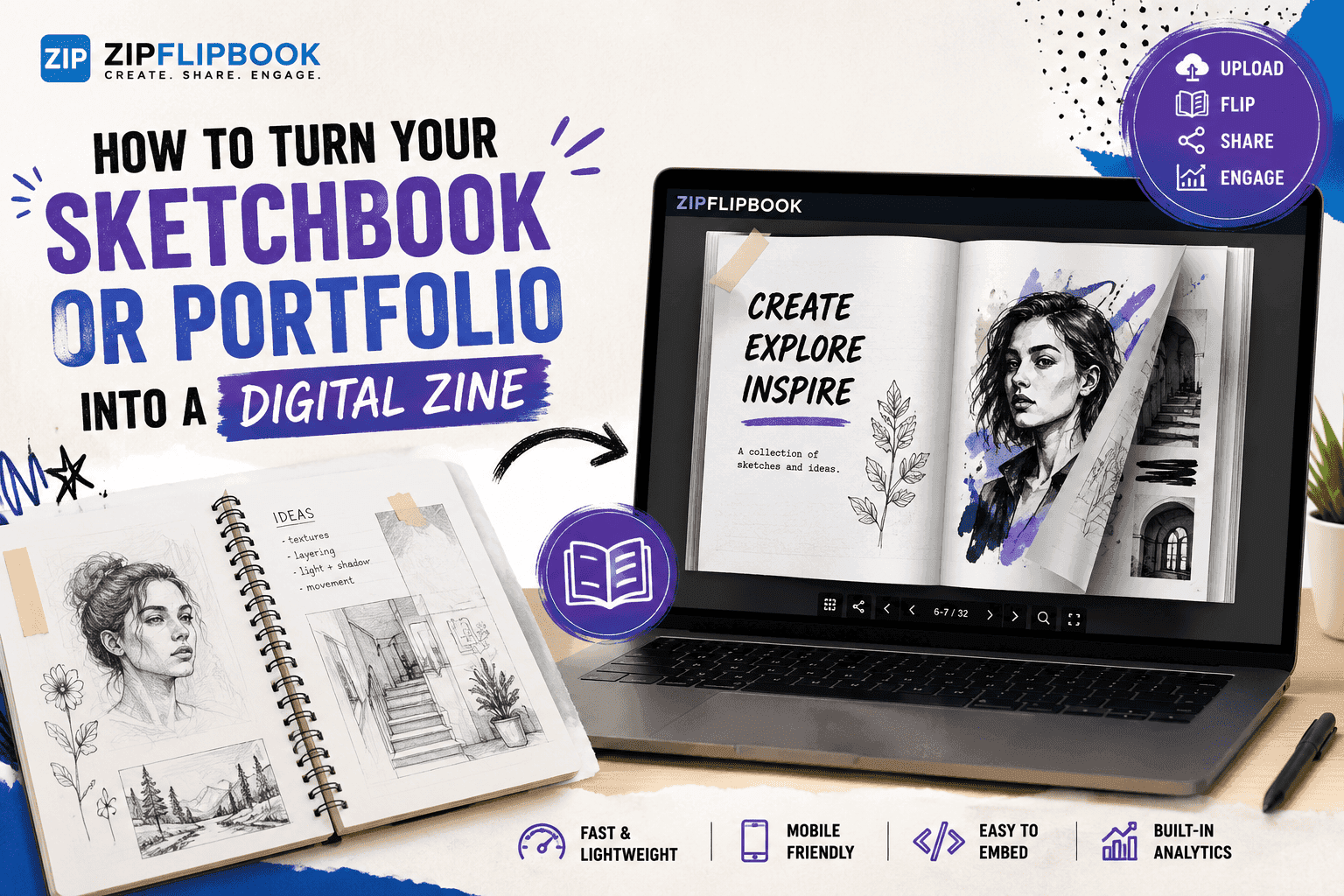
Instead of embedding a flat PDF, it converts documents into interactive flipbooks that feel far more modern inside React applications.
And honestly?
The difference in presentation quality is huge.
Turn Your PDFs into Lead Generation Machines
Start getting highly-qualified leads from your PDFs and landing pages today. It takes exactly 2 minutes to set up.
No credit card required • Sign up in 10 seconds
What Makes Flipbook Embeds Feel Better
1. The Experience Feels Interactive
Instead of endless scrolling, users interact with pages naturally.
The page-flipping effect sounds simple, but psychologically it creates a much more engaging experience.
Especially for:
- product catalogs
- magazines
- brochures
- portfolios
- real estate presentations
- restaurant menus
- marketing documents
it feels dramatically more polished.
2. Mobile Experience Is Usually Better
Traditional PDFs often feel terrible on mobile.
Flipbook viewers are usually optimized much more carefully for:
- touch gestures
- responsive scaling
- fullscreen reading
- swipe navigation
- smooth page transitions
This creates a significantly better experience for mobile-heavy audiences.
3. Faster Implementation for Developers
This is a huge practical advantage.
Instead of spending weeks building:
- rendering systems
- navigation controls
- optimization layers
- fullscreen viewers
- animations
- responsive behavior
you can simply embed the generated viewer.
That saves an enormous amount of engineering time.
How To Embed ZipFlipbook in React
The process is surprisingly simple.
- Upload your PDF to ZipFlipbook
- Generate the interactive flipbook
- Copy the embed URL
- Add it inside your React component
Example:
export default function FlipbookViewer() { return ( <div className="w-full h-screen"> <iframe src="YOUR_FLIPBOOK_URL" width="100%" height="100%" allowFullScreen title="Flipbook Viewer" /> </div> );}
That’s honestly one of the easiest production-ready document solutions I’ve used in React projects.
Performance Tips Professional React Developers Actually Use
Most PDF tutorials stop at “here’s the code.”
But performance matters heavily in real production environments.
Here are the things experienced React developers genuinely pay attention to.
1. Lazy Load PDF Components
Never load heavy PDF viewers immediately on initial page render.
Use React lazy loading:
const PdfViewer = React.lazy(() => import("./PdfViewer"));
This improves:
- initial load speed
- Lighthouse performance
- Time to Interactive
- bundle size efficiency
Especially important for large SaaS applications.
2. Compress PDFs Aggressively
A badly optimized PDF can destroy UX no matter how good your frontend code is.
Always compress:
- images
- embedded fonts
- unnecessary metadata
before uploading documents.
Huge PDFs create:
- slow loading
- memory spikes
- mobile crashes
- laggy scrolling
3. Use CDN Delivery
Serving PDFs directly from your app server is often inefficient.
Using a CDN dramatically improves:
- global load speed
- caching
- bandwidth efficiency
- mobile performance
For high-traffic applications, this matters a lot.
4. Always Test on Low-End Devices
Many developers test PDFs on powerful laptops only.
Then users with mid-range Android phones struggle badly.
Always test:
- mobile scrolling
- zoom interactions
- loading speed
- memory usage
- responsiveness
on weaker devices too.
5. Consider User Intent
This is underrated.
Ask:
What is the user actually trying to do?
If they simply need quick access to information:
- inline text might be better than PDFs
If they need immersive presentation:
- flipbooks often work better
If they need documentation tools:
- custom React viewers make sense
Choosing the right UX matters more than choosing the fanciest technology.
SEO Considerations Most Developers Forget
Embedded PDFs contribute very little to SEO by themselves.
Google may index PDFs separately, but relying entirely on PDFs for content ranking is usually a mistake.
A much better strategy is:
- surrounding PDFs with optimized content
- adding descriptive headings
- including transcript text
- using structured metadata
- writing supporting explanations
Treat PDFs as supplemental assets — not your primary SEO content.
My Practical Recommendation After Multiple Production Projects
After working on multiple React applications involving documents, here’s the breakdown I’d realistically give developers.
Use Basic iframe Embeds If:
- it’s an internal dashboard
- speed of implementation matters most
- design quality is not critical
- documents are lightweight
- the audience is small
Use react-pdf If:
- you need custom controls
- you want deep React integration
- your app is document-heavy
- you need advanced interactions
- you want complete rendering control
Use ZipFlipbook If:
- presentation quality matters
- you’re embedding catalogs or brochures
- you want polished UX quickly
- mobile experience matters heavily
- you don’t want to spend weeks building custom viewers
- the document is customer-facing
For many modern business websites, that last option creates the best balance between:
- developer productivity
- visual quality
- engagement
- implementation speed
- user experience
And honestly, clients notice the difference immediately.
A polished interactive document simply feels more premium than a flat embedded PDF.
Turn Your PDFs into Lead Generation Machines
Start getting highly-qualified leads from your PDFs and landing pages today. It takes exactly 2 minutes to set up.
No credit card required • Sign up in 10 seconds