Ask someone what a photo contains and they'll say: pixels. Colors. Maybe a memory. They won't mention the spreadsheet's worth of data hiding underneath.
Almost every digital photo carries invisible information embedded directly in the file — stuff that never shows up on screen but travels with the image everywhere it goes. Camera model, date and time, exposure settings, editing software, and in a lot of cases, the GPS coordinates of exactly where you were standing when you hit the shutter.
That hidden layer — metadata — tags along like unwanted luggage. Email it, post it, send it to a client. The data usually comes with.
That's why knowing how to inspect your photos before sharing them matters. And that's where an Exif Viewer comes in.
You can quickly inspect the hidden data inside your images using this free Exif Viewer from Exif Injector.
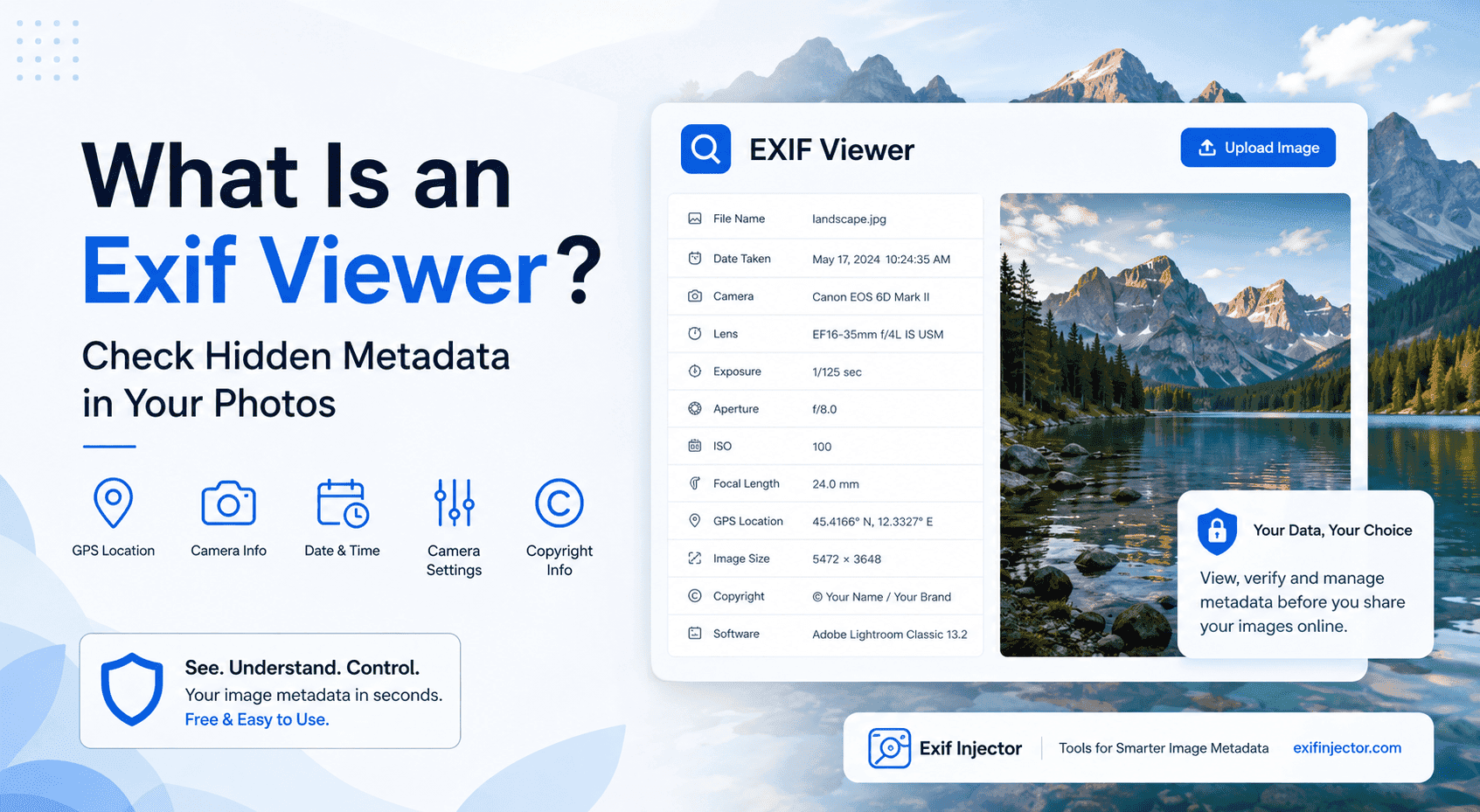
What Is an Exif Viewer?
EXIF stands for Exchangeable Image File Format — the standard cameras and phones use to automatically stamp technical information into your photos the moment you take them.
An Exif Viewer reads that data and puts it in front of you. Nothing more complicated than that.
When you snap a picture, your device quietly logs things like the exact date and time, camera or phone model, lens details, aperture, shutter speed, ISO, whether the flash fired, GPS coordinates if location was on, image orientation and resolution, editing software that touched the file, and any copyright or creator information.
Most of this happens in the background without you doing a thing. Most people have no idea it's there. An Exif Viewer surfaces it in seconds.
Why Would You Check Your Photo's Metadata?
Why bother? Three reasons, really.
Start here: privacy. Smartphone photos frequently carry GPS coordinates — precise ones. A photo of your living room might contain your home address. A shot from the office reveals your workplace. People don't usually think about this until something goes wrong.
Then there's professional control. Photographers need to know what EXIF data their images carry — for authorship, for client delivery, for protecting their work. Businesses need it to manage image assets and know what's actually inside their files.
And there's image organization. For website owners and e-commerce sellers, metadata helps document, sort, and manage large batches of images. Before bulk-uploading hundreds of product photos, knowing what's baked into those files matters.
First step in all three cases: look at what's actually there.
What Can an Exif Viewer Show You?
Depends on the photo. Some files are nearly empty. Others are loaded.
Camera and Device Info
Brand and model of whatever took the picture. iPhone, Samsung, Canon, DJI drone, GoPro. Useful in some contexts, unnecessary in most casual sharing situations.
Date and Time
The exact timestamp. Good for organizing archives. Can be revealing in other situations.
GPS Location
The sensitive one. If location services were on when the photo was taken, this field can contain precise coordinates accurate to a few meters. Your home. A client's property. A private event. All potentially readable from a photo that looks completely ordinary.
Camera Settings
Aperture, ISO, shutter speed, focal length, white balance, exposure mode. The technical record of how the shot was made. Photographers actually care about this.
File Details
Width, height, file type, color profile, resolution, orientation. Useful for web publishing and image workflows.
Copyright and Creator Information
Author name, copyright notice, license details. Matters if you're a photographer or a brand trying to attach ownership to your visual assets.
How To Use One
Upload an image. Read what comes back. That's the core of it.
Most tools accept JPG, JPEG, PNG, TIFF, and sometimes WebP. JPGs from cameras and phones tend to carry the most EXIF data.
Once you've seen what's inside the file, you make a call: keep the camera settings if they're relevant, strip the GPS data before posting publicly, add copyright before delivering to a client, clean the whole thing before sending something sensitive. The viewer is the first move. What happens next is up to you.
How To Check EXIF Data on Different Devices
Windows
Right-click the image → Properties → Details tab. You'll see some basics — camera model, date, dimensions. Not everything, but fast.
macOS
Open in Preview → Tools → Show Inspector. Browse the EXIF and GPS tabs. More thorough than Windows, still not complete.
Android
Open the photo in your gallery → three-dot menu → Details or Info. Some Android phones surface location and camera data, others only show basic file info.
iPhone
Open the photo → swipe up. Date, location, camera model, lens info. If location was on when the shot was taken, those coordinates are there.
For anything deeper, an online Exif Viewer gives you the full picture.
Can Photos Actually Contain Your Location?
This catches people off guard constantly.
When location services are enabled on your camera app, the phone writes GPS coordinates into the image file automatically — every single shot, without asking. You don't approve it each time. It just happens.
Post that photo online with metadata intact and anyone with an Exif Viewer can pull those coordinates. Your home. The restaurant you were at. A client's address. Not theoretical. Happens every day.
Photos look identical with or without location data, which is exactly why people miss it.
How To Stop Your Phone From Saving Location
iPhone
Settings → Privacy & Security → Location Services → Camera → Never.
Stops the camera from tagging new photos going forward. Old photos are unaffected — you'd have to handle those separately.
Android
Open Camera → Settings → look for "Location tags," "Save location," or "Geo-tagging" → turn it off. You can also revoke camera location permissions through your phone's main settings.
Should You Strip Metadata From Every Photo?
No. And it's worth being clear about this.
Metadata isn't automatically a problem. Photographers want their camera settings preserved. Copyright fields protect authorship. Product teams rely on metadata to organize large image libraries. Removing everything by default means losing information that might actually matter to you.
Strip it when the file contains GPS data you don't want public, when you're sharing personal images on social media, when you're uploading to a public marketplace and don't want device details exposed, or when you're sending something sensitive and want the file clean.
Keep it when you need a record of your camera settings, want your name and copyright attached, or are managing a documented image archive.
Viewer first. Remover second. Don't skip the diagnosis.
Why It Matters for Website Owners
Images move through a website constantly — different contributors, different sources, uploaded at different times by different people.
Metadata keeps that organized. Copyright notices, creator credits, usage information — embedded directly in the file, not in a spreadsheet somewhere that might get lost. Before images go live, checking what's actually inside them confirms the right information is there, or catches something that shouldn't be.
Why It Matters for E-Commerce
Product photography at scale is messy. Hundreds of SKUs, multiple camera setups, different editors, batches of photos that need to stay documented and traceable. Metadata can carry product identification, creator info, copyright, campaign documentation — all attached to the file itself. Before bulk uploads to Shopify, WooCommerce, Etsy, or anywhere else, a metadata check catches what shouldn't be there and confirms what should. And once those image libraries start growing into the thousands, having a storage setup behind the scenes matters just as much as the metadata itself.
Why It Matters for Photographers
EXIF data is how you study your own work. How you remember what settings produced a shot. How you compare and improve over time.
It's also how you document authorship. An image with your copyright embedded in the metadata is harder to strip and claim as someone else's — not foolproof, but better than nothing.
Before delivering work to clients or uploading to a portfolio, an Exif Viewer confirms your information is in there the way it should be.
Why It Matters for Privacy
A normal-looking photo can contain your home address, your workplace, where your kids go to school, a private event location. None of it visible in the image. All of it readable from the file.
A few seconds of checking before you share something sensitive is a reasonable habit. Especially for home photos, children's photos, workplace images, anything photographed on a personal device.
Quick Checklist Before Sharing Any Photo
- Open the image in an Exif Viewer
- Check for GPS coordinates
- Review device and camera info
- Look at creator and copyright fields
- Remove private metadata before posting publicly
- Keep metadata that documents ownership or technical detail
- Save a clean copy before uploading
Two minutes. Avoids a lot of potential problems.
FAQs
What is an Exif Viewer?
A tool that reads and displays the metadata stored inside image files — camera info, date, GPS location, software, copyright details.
Can people see EXIF data by looking at my photo?
No. The data isn't visible in the image itself, but anyone with a viewer can pull it from the file instantly.
Does an Exif Viewer delete metadata?
No. Viewing and removing are separate. The viewer shows what's there; a remover strips it.
Do iPhone photos contain EXIF data?
Yes — date, camera model, settings, GPS coordinates if location services were on.
Do Android photos contain EXIF data?
Yes. Same deal — camera details, date, time, often location data.
Should I remove metadata from all my photos?
Check first, then decide. Blanket removal means losing data that might be worth keeping.
Can EXIF metadata prove copyright?
It can include creator and copyright information, which adds documentation. Not a legal substitute for registration, but better than a file with nothing in it.
What's the easiest way to check photo metadata?
Upload to an online Exif Viewer. No installation, takes seconds, shows everything in the file.
Conclusion
Photos carry more than you can see. Behind the image there's often timestamps, location data, camera settings, device info, copyright fields — a whole layer most people never look at.
Checking before you share is a small habit with a real payoff. An Exif Viewer makes it fast. Once you know what your files actually contain, you can make a real decision about what stays and what goes.